


MLTE uses a caret to mark the position in the displayed text where the next editing operation is to occur. When your application uses MLTE to paste text into a text object, MLTE positions a caret after the pasted text. For unidirectional text , when the user presses an arrow key to move the caret left or right across the text, MLTE moves the caret in the direction of the arrow key. If the document contains embedded objects --graphics, movie, or sound data embedded in text--the caret treats the embedded object as a single character.
For bidirectional text, the caret position at a direction run boundary depends on the direction of the keyboard script ; split carets are not supported. Figure 2-5 shows a sequence of two Right Arrow key presses and their impact on caret display and movement in a line containing bidirectional text. In this example, the primary line direction is right to left.
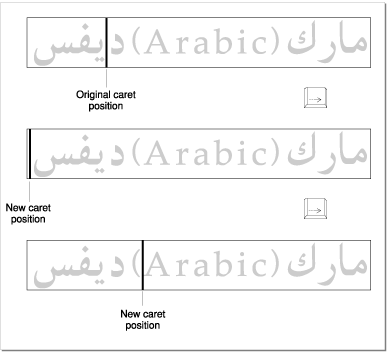
In the first instance of the text segment , the caret is positioned within the Arabic text. When the user presses the Right Arrow key once, the insertion point is positioned on a direction boundary and the caret jumps to the left side of the Arabic text. When the user presses the Right Arrow key again, MLTE displays the caret at the right side of the left parenthesis in the Roman text.
For read-only documents, you can choose among three behaviors for your application. The first behavior is to display a blinking caret and allow selection and copying of text. The second behavior is not to display a caret or allow text to be selected. This is the model used by SimpleText for read-only documents. The third behavior is to display a non-blinking caret and allow selection and copying of text.
Horizontal arrow keys move in a direction dependent on the line direction of the text. The arrow key moving in the line direction (right for Roman) starts at the trailing edge of the highlight region in the last line of the selection and simulates successive clicks at each character boundary moving in the line direction until it hits the trailing edge of the visual line. At that point, selection wraps to the leading edge of the next visual line. The character boundaries are determined by the storage order and not the display order .
The arrow key moving against the line direction (left for Roman) starts at the leading edge of the highlight region in the first line of the selection and simulates successive clicks at each character boundary moving against the line direction until it hits the leading edge of the visual line, then wraps to the trailing edge of the previous visual line.
For the horizontal arrow keys, a ligature that does not allow for an insertion point between its constituting characters is treated as one character. Combining the Option key with a horizontal arrow key simulates clicks at word boundaries instead of character boundaries. Combining the Command key with a horizontal arrow key in or against the line direction simulates clicks at the trailing edge or leading edge of the last line or first line intersecting with the selection, respectively.
When the user presses the Up Arrow key, the caret moves up one line, even in lines of text containing fonts of different sizes. When the caret is positioned on the first line of a text object , and the user presses the Up Arrow key, MLTE moves the caret to the beginning of the text on that line. This position corresponds to the visible right end of a line when the primary line direction is right to left and to the left end of the line when the primary line direction is left to right.
Similarly, when the user presses the Down Arrow key, the caret moves down one line. When the caret is positioned on the last line of a text object, and the user presses the Down Arrow key, MLTE moves the caret to the end of the text on that line. That is, the caret moves to the visible left end of a line when the primary line direction is right to left and to the right end of a line when the primary line direction is left to right.
Combining the Option key with an Up Arrow or Down Arrow key simulates a click at the corresponding edge of the portion of the view shown in the window, paging the view first if the active selection was already at that edge. The starting point for a selection is determined at the beginning of an uninterrupted sequence of Up Arrow and Down Arrow keys.